Set up and add The Freestyle projector to the SmartThings app
If you're a techie who already loves to remotely control smart devices, why not set up The Freestyle using the SmartThings app?
-
Before you add The Freestyle to the SmartThings app, make sure it's pointed at a wall or desk so you can clearly see its screen.
-
Connect the included USB-C adapter to the charging cable, and then plug one end into a power source. Plug the other end into The Freestyle, and then tap the Power button on The Freestyle to turn it on.
-
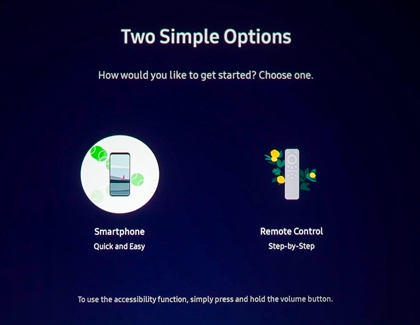
Once The Freestyle is turned on, wait a moment for the image to begin projecting. Select your preferred language, and then select the Smartphone option.
Note: You can also select Remote Control to set up The Freestyle with the included remote. Please see the previous section for more details.
-
Next, navigate to and open the SmartThings app on your phone, and then tap the Devices tab.
-
Tap Add (the plus sign), and then tap Add device.
-
Under "Scan QR code," tap Scan, and then use your phone's camera to scan the code.
-
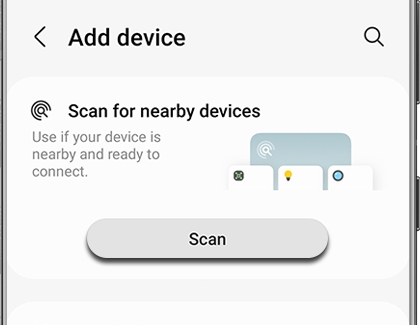
If the QR code is not working, there is another way to add the projector. Under "Scan for nearby devices," tap Scan.
-
Tap Add next to Samsung Projector, and then select a Location and Room for it. Tap Next.
Note: You will need to add the PIN that is shown on the projector’s screen to the SmartThings app.
-
Follow the on-screen instructions to finish adding The Freestyle to SmartThings.
Note: Check for software updates after the initial setup is complete to make sure the Freestyle stays up to date.
https://www.samsung.com/