Control The Freestyle projector from the SmartThings app
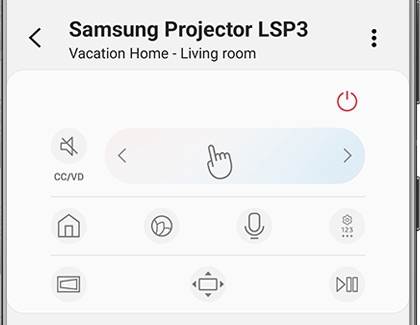
Now that your projector has been added to the SmartThings app, you can start controlling it right from your phone. Open the SmartThings app and then navigate to and select your projector to bring up its remote control home screen. Under Remote, you can use the slider to adjust the volume and also tap the Mute icon to mute the sound.
Tap Remote to access these additional options:
-
Power icon: Turn The Freestyle off and on.
-
Home icon: Access the Samsung Smart TV Home screen.
-
Ambient Mode icon: Open Ambient Mode if you’d like to display an image or scene on your wall.
Note: You can also access Ambient Mode from The Freestyle’s remote control home screen.
-
Microphone icon: Allows you to use a Voice Assistant with The Freestyle. You’ll be able to turn on and control The Freestyle with a simple voice command!
Note: You can also turn on the MIC switch on the side of The Freestyle.
-
Settings icon: Access the Settings menu.
-
Orientation icon: Adjust the screen vertically and horizontally.
-
Screen scale icon: Adjust the screen to fit your wall, ceiling, desk, or other surface by swiping left or right.
-
Play/Pause icon: Allows you to play or pause the content when using apps such as Netflix or YouTube.
-
Back icon: Return to the previous screen.
-
4D-pad: Open the touchpad for easy navigation.
-
CH: Open the channel selection. You can tap Pre-CH to return to the previous channel, and tap GUIDE to open the channel guide.
-
123: Open the number pad if you’d like to search for a channel.
From The Freestyle’s remote control home screen, tap Sources & Apps to access The Freestyle’s included apps, such as Netflix, Prime Video, Disney+, YouTube, and Samsung Health. You can also tap Universal Guide to quickly jump to a channel or program.
https://www.samsung.com/