
The Freestyle projector is designed to give you a flexible and personalized viewing experience. It includes convenient physical controls, smart mobile connectivity, voice assistant support, and input options for external entertainment devices. Whether you want to stream content, connect a game console, or adjust settings from your phone, The Freestyle is built to adapt to a variety of spaces and uses.
The projector features a micro HDMI port for connecting external devices such as game consoles, Blu-ray players, and other compatible media sources. It also has a USB-C power port for supplying power. In addition, the MIC switch allows access to voice-enabled features, including support for Bixby and Amazon Alexa.
Before First-Time Setup

Before using The Freestyle for the first time, make sure to remove the protective film covering the lens. Leaving the film in place may affect image quality during setup and normal operation.
When choosing the best position for the projector, place it with the Samsung logo facing downward. This helps ensure the device is oriented correctly for projection and automatic screen adjustment.
Projector Controls and Main Components

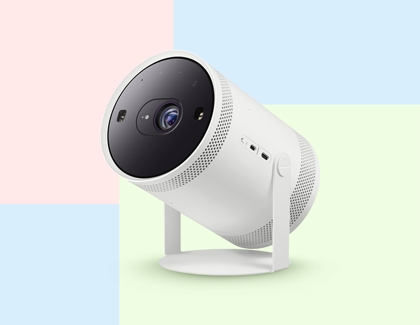
On the top of the projector, you will find several important components used for operation and performance:
- Lens – Projects the image onto the selected surface.
- Distance Sensor – Helps the projector detect placement and optimize screen adjustment.
- Remote Control Sensor – Receives signals from the remote control.
- LED Indicator – Displays the projector’s operating status.
- Power Button – Turns the projector on or off.
You can also use the touch controls to manage volume and connectivity:
- Tap the plus (+) button to increase the volume.
- Tap the minus (-) button to decrease the volume.
- Tap the Mobile button to access remote control functions through the SmartThings app.
After tapping the Mobile button, a notification should appear on your phone. Tap the notification to open the SmartThings app and begin controlling The Freestyle from your mobile device.
Freestyle Placement
The Freestyle is designed to work on a variety of surfaces and at different projection angles. When you rotate the projector, it can automatically adjust the image based on the new surface. For example, if you move it from a wooden tabletop to a painted wall, the projector recalibrates to match the new surface conditions and colors.
For the best viewing experience, place The Freestyle on a stable, level surface. Proper placement helps the projector maintain a clear, crisp, and properly aligned image.
Screen Sizes by Distance from the Surface
The image size produced by The Freestyle depends on how far the projector is placed from the projection surface. As the distance increases, the screen size also becomes larger.
Note: Screen size may vary depending on the environment.
- 100-inch screen – 8.7 feet
- 90-inch screen – 7.8 feet
- 80-inch screen – 7.0 feet
- 70-inch screen – 6.1 feet
- 60-inch screen – 5.2 feet
- 50-inch screen – 4.4 feet
- 40-inch screen – 3.5 feet
- 30-inch screen – 2.6 feet
Placement Tips
- Use the projector on a steady surface to prevent image distortion.
- Make sure the lens is clean and unobstructed before use.
- Allow the projector enough room for ventilation during operation.
- Adjust the placement distance based on your preferred screen size.
- Use SmartThings for easier control and quick access to mobile-based remote features.